Colossus Desktop
Colossus Desktop puts a local agent workspace around your projects. Choose a folder, connect a model, and give the agent work in Plan, Execute, or Research mode. The app keeps conversations, plans, sources, and released outputs together while you decide which effects it may perform.
-
macOS
Install the Apple silicon app, choose a folder, and connect a model.
-
Windows
Install the signed x64 app and start Managed Local in a workspace.
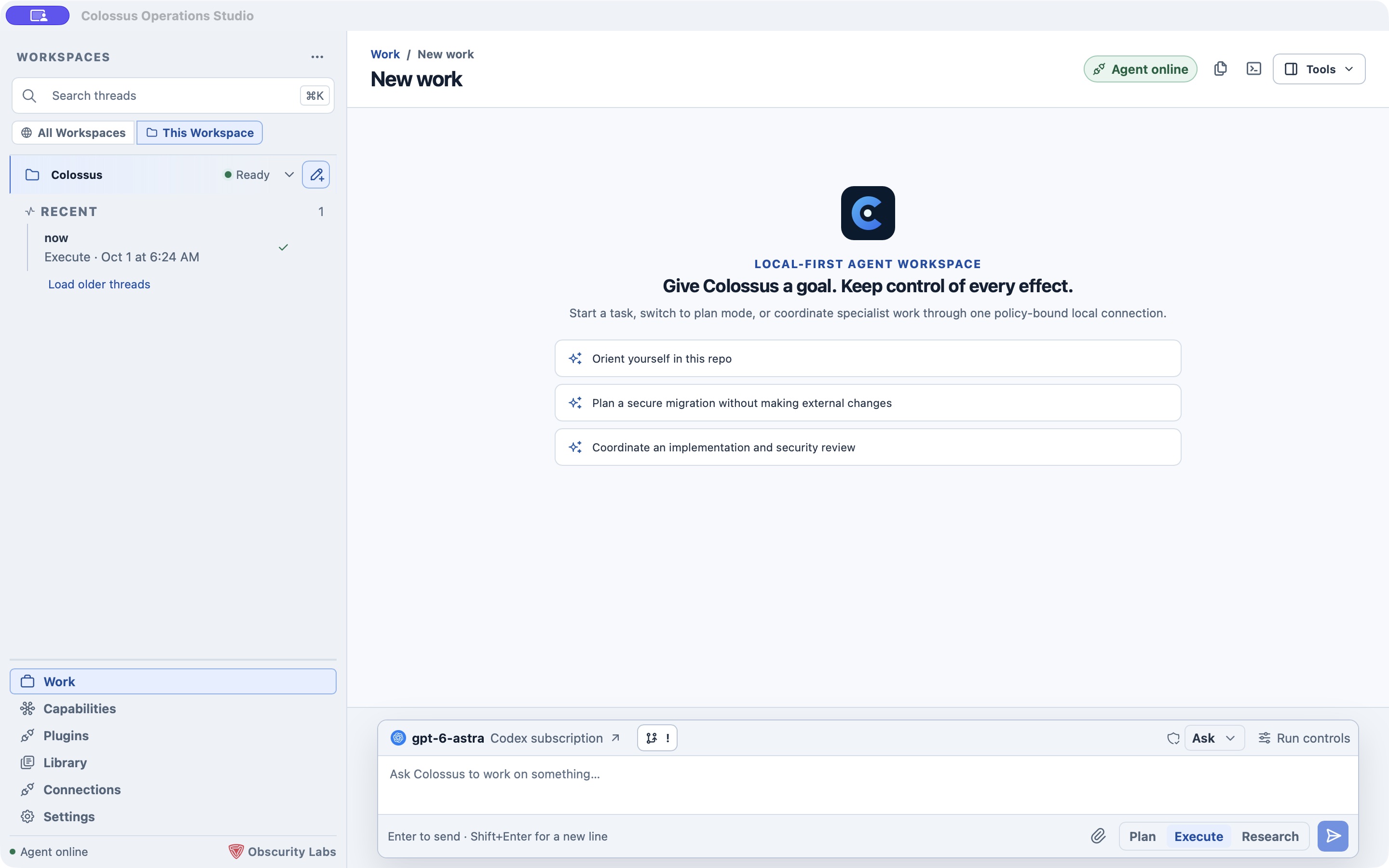
Captured from a locally running development build with Managed Local ready and a connected Codex model. The exact controls shown depend on the platform and the selected runtime.
Find your way around
The left side is your workspace and thread list. Work is where you start or resume conversations. The other destinations show what the selected runtime can do and how it is configured.
| Go to | Use it for |
|---|---|
| Workspaces | Add a folder, switch runtimes, search threads, and archive old work. |
| Work and threads | Start a run, switch modes, queue a follow-up, search or organize threads. |
| Session views | Inspect a conversation, plan, activity, sources, snapshots, and other resources. |
| Tools beside your work | Browse files, inspect changes, open a terminal, view artifacts, or ask in an Aside. |
| Capabilities and plugins | See the selected runtime's advertised tools and use installed skills or plugin connections. |
| Workflows and schedules | Inspect reusable logic, run workflows, and schedule workflows or plain-language tasks. |
| Settings and access | Choose a model, set workspace access, manage shared connections, and run diagnostics. |
| External targets | Connect Desktop to an enrolled daemon instead of a managed local workspace. |
What runs locally
Each Desktop workspace is a folder you select with the native picker. Managed Local starts the app's bundled runtime for that folder; there is no separate daemon to install for the normal path. Desktop stores its own configuration and conversations in a private Colossus home partition rather than writing them into the selected repository. The folder still supplies the working context for tools and relative paths.
The workspace name and Ready state appear in the sidebar. Agent online means Desktop has a usable authenticated connection to its selected runtime. A real model response also requires a configured provider and model. An offline self-test can check local startup without a model credential.
Selecting a folder does not itself restrict every tool to that folder. Review the access profile and execution boundary before running on a sensitive project.
Desktop or CLI?
Desktop is useful when you want conversations, run controls, files, plans, and settings in one window. The CLI quickstart and Terminal UI are available when you prefer a shell. Desktop can also open its bundled Colossus TUI beside a conversation on supported Managed Local workspaces. CLI and Desktop state stay in separate partitions even when they point at the same repository.
Start here
- Install and set up Desktop on macOS, or follow the Windows installation.
- Start your first Desktop task.
- Explore the tools beside the conversation.
Organizations can share provider and model choices through a Desktop setup file. Desktop reviews that file locally before importing it; API keys are entered separately.