Skip to content

Colossus Desktop

Goal

Open one repository in Colossus Desktop without installing or starting a daemon, then confirm that work uses the app-managed runtime and its bounded access profile.

Prerequisites

  • macOS 13 or later for the first desktop release.
  • Apple silicon for the first direct-download build.
  • A folder you own and intend Colossus to use as its workspace.
  • An OpenAI Responses or OpenAI-compatible provider key, or the official Codex CLI installed for ChatGPT subscription-backed model runs.

The offline self-test does not require a provider key or network connection.

For the unsigned Windows 10/11 x64 package, use the Windows Desktop Developer Preview guide.

Steps

1. Download and verify Desktop

From the v0.10.2-preview.10 Developer Preview, download Colossus-Desktop-DEVELOPER-PREVIEW-v0.10.2-preview.10-aarch64-apple-darwin.zip and its adjacent .sha256 file. Keep both files together and verify the archive before opening it:

shasum -a 256 -c \
  Colossus-Desktop-DEVELOPER-PREVIEW-v0.10.2-preview.10-aarch64-apple-darwin.zip.sha256

The check must report success. Expand the zip and move Colossus Desktop to Applications. A checksum detects damage or substitution after the checksum was produced; it does not by itself authenticate the publisher.

This Developer Preview is ad-hoc signed and is not notarized by Apple. Control-click Colossus Desktop, choose Open, and confirm Open on first launch. If macOS still blocks it, use System Settings → Privacy & Security → Open Anyway. Do not disable Gatekeeper globally, and do not treat this preview as a stable production build.

2. Open a workspace

Launch Colossus Desktop and choose a folder through the native picker. The app records an opaque workspace binding in $COLOSSUS_HOME/desktop/settings.json. It does not write Colossus configuration, state, or credentials into the selected repository. Managed Local keeps its generated configuration, canonical database, indexes, and private runtime files in the selected workspace's isolated workspaces/<partition-id>/desktop/ home partition; it never aliases CLI/TUI state.

An older preview that recorded only a path or inode cannot safely prove that the current folder is the one you chose after the app has exited. After upgrading such a preview, Desktop intentionally asks you to choose the folder again and starts a fresh managed state partition; it never attaches the replacement folder to the old state. This release also starts fresh in the Colossus home rather than migrating earlier application-support data. That legacy data is preserved and ignored, not imported or deleted. Keep it until the new workspace has been verified.

New installations select Managed Local. The signed app supervises its bundled colossus-sidecar, and the native desktop backend connects to that process over the same authenticated, pinned loopback gRPC contract used by application SDKs. A WebView reload does not stop the runtime.

The repository remains Desktop's context, relative-path anchor, and state identity. Selecting it does not relocate the Colossus home. Full access, the default for fresh Managed Local settings, allows authorized tools to use host resources outside that repository; choose Workspace isolated or Offline isolated when it must be a resource boundary. Top-level Desktop agent runs automatically snapshot $COLOSSUS_HOME/AGENTS.md followed by the selected repository's AGENTS.md; see the home and instruction reference.

Offline isolated is not an air gap. It uses platform isolation without derived workspace resources and hides the generic model-visible network.http, web.fetch, and docs.fetch tools. Managed Local still retains the exact provider service and authentication/refresh destinations required by the selected provider, so model calls and Codex authentication can work; those retained destinations do not make the generic fetch tools visible. Search, MCP, and integration adapters remain independently controlled by their own configuration. For a deployment with no remote transport, use the offline and air-gapped operation guide.

3. Configure a model

Select the fixed OpenAI Responses, OpenRouter (OpenAI-compatible), or ChatGPT subscription (Codex) preset and enter the model. OpenAI and OpenRouter continue through an operating-system secure-input dialog for the preset's fixed origin; the WebView cannot submit a key or endpoint. The native layer stores that key directly in the platform keychain, and Managed Local resolves only its opaque host: reference after policy permits the provider action.

For Codex, choose Sign in with ChatGPT. Desktop confirms the operation natively and starts the official Codex CLI login flow. The resulting credential stays in the Codex-owned private file store. The WebView receives only signed-in, signed-out, or unavailable status; the native host passes the validated file path—not its tokens or account identifier—over inherited bootstrap IPC. Sign-out uses the official CLI too.

Later model or access-profile edits reuse the existing keychain entry when the provider preset is unchanged. Select Replace the stored API key to rotate it; first setup and every API-key provider-preset change always force the native key prompt. Advanced model configuration also exposes the provider-neutral reasoning-effort setting used by Codex and other adapters that support it.

The key is not written to YAML, argv, environment variables, renderer state, logs, or terminal sessions. Real model runs remain unavailable until this setup succeeds. Use the explicit offline self-test when you only need to validate local startup.

Manage inherited configuration

Open Settings and switch between Global and Workspace. Global resources are immutable revisioned definitions for providers, models, credentials, MCP servers, search, and telemetry. A Workspace pins the exact revisions it uses. Saving a Global edit does not change a running Workspace; the Workspace shows an update and must review and apply it. Workspace edits apply only to that Workspace after configuration preflight and any required native authority confirmation.

Each ordinary setting shows whether its effective value comes from the Colossus built-in default, a Global override, or a Workspace override. Inherit removes an override instead of copying the current value. The read-only effective YAML view is sanitized and marks Desktop-owned runtime identities and private storage paths.

Global catalog editors preserve the complete managed resource revision. In particular, model reasoning effort and image-input capability, nullable provider defaults, explicit telemetry sensitivity acknowledgments, and the complete MCP transport contract can be reviewed without hand-editing YAML. MCP exposes exact arguments and tool names one per line, working directories, multiple native credential bindings, non-secret static headers, OAuth, research projections, stateless HTTP, and optional runtime limits. Credential values remain native-only; the editor stores and displays identifiers.

Use Import config in a Workspace to inspect .colossus/config.yaml without modifying the repository. Desktop proposes reusable catalog resources, Workspace overrides, and native credential mappings. Same-name conflicts require Rename, Replace, or Skip. Re-import compares the stored source hash before applying any changes. Repository env: references must map to native credentials; secret values and static MCP headers never cross into the WebView.

For an active Workspace, provider, model, search, MCP, and OTLP health checks run through that Workspace's authenticated worker using its accepted revisions, CA trust, credentials, network grants, and sandbox. MCP OAuth status, login completion, and logout remain runtime-owned; Desktop exposes only bounded status and authorization metadata. The OTLP check emits bounded diagnostic signals and flushes the live host-owned exporters. Its result contains only per-signal pass, fail, or disabled status, never collector errors, endpoints, headers, credentials, or payloads.

Applying a Workspace edit while work is active moves the Workspace to Draining. Existing runs finish against their pinned configuration, new runs are rejected, and Desktop restarts the Workspace only after the active set is empty. A bounded drain timeout leaves the current runtime and persisted settings unchanged.

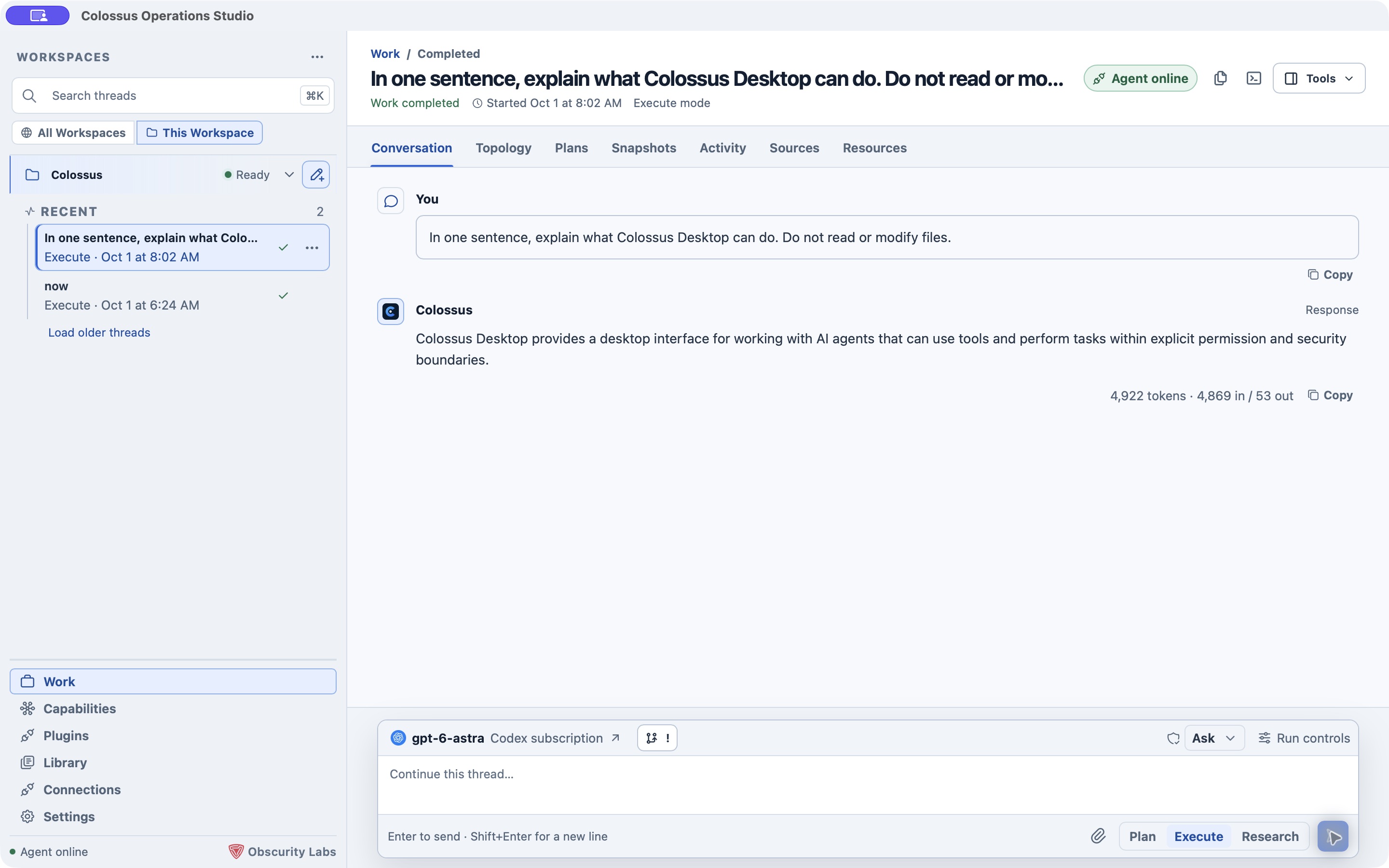
4. Start work

Create new work, choose Plan or Execute, and submit a prompt. Every request names the selected runtime target. Access and execution boundary are separate controls. The default access profile is Allow all, and Full access is the default execution boundary for fresh Managed Local settings. Schema-v1–v3 migrations preserve the prior platform-isolated behavior: Minimal maps to Offline isolated, while Development and legacy allow_all map to Workspace isolated. Full access is intentionally unsafe: registered tools are allowed without built-in approval friction and may use ambient host filesystem, process, environment, and HTTP(S) resources. The interface keeps a persistent warning visible. Choose Workspace isolated or Offline isolated to restore platform containment; choose Development or Minimal to narrow tool decisions independently.

The Work surface keeps every released, listable session record available. Snapshots lists immutable context-compaction records and opens their summary, message range, pinned facts, open tasks, touched files, notable tool results, and strategy. Resources links plans, sources, snapshots, and artifacts and expands delegated agents, goals, tasks, decisions, memories, and research runs for direct inspection. The session map uses bounded projections; opening these views never exposes canonical secrets or deletes conversation history. Managed Local's native layer requires an operating-system confirmation before widening access or execution authority. Its primary credential has exactly the run and prompt scopes plus the reviewed built-in tool ceiling for that selection. That ceiling includes bounded, non-recursive delegation when agent.delegate is selected; it never creates undeclared tools or administrative authority. Approval responses use a separate native-only, tool-less credential after the operating-system confirmation. Neither credential grants administrative or unrestricted skill authority.

The permission selector beside the Work composer changes how Managed Local handles approval-required effects for subsequent work without restarting the runtime. Deny fails those effects closed, Ask pauses for the app's approval card, Risk auto allows eligible low-risk effects after evaluator review, and Full access satisfies approval obligations without asking. Moving to Risk auto or Full access requires an operating-system confirmation, and the mode cannot change while a managed run is active. This runtime-local selection returns to Ask when Managed Local restarts. It does not change policy decisions, tool authority, access profile, or execution boundaries, and it is unavailable for independently administered External targets.

Settings shows the runtime as Starting, Ready, Restarting, Stopping, or Failed. Workspace and provider changes drain and restart the sidecar. Unexpected exits receive at most three bounded restart attempts; in-flight mutations are not automatically replayed.

For a private provider or enterprise TLS interception root, open Settings → Additional CA certificates and import a PEM bundle. Desktop copies and validates it in private native storage and shows only its certificate count and SHA-256 fingerprints. Import and removal restart Managed Local transactionally; the renderer never receives the original or private storage path.

5. Check the signed update channel

Only stable builds advertise an automatic update channel. Desktop does not perform a background update request: the check occurs only after Settings → Desktop updates → Check for updates. Developer Preview, validation-only, and development builds have no update authority; install later previews manually from GitHub Releases.

Both the metadata request and package download use the shared Colossus network configuration, including an imported additional CA bundle. The native updater rejects non-HTTPS endpoints, HTTP redirect downgrades, mismatched channel metadata, and unsupported platform targets. Install update opens a native confirmation, downloads the package, verifies its Tauri updater signature with the public key sealed into the application, and only then invokes the platform installer. The renderer receives only whether an update is configured or available and the public version/channel values; it does not receive update URLs, signatures, or package bytes.

6. Add an External target when needed

Use External for an installed daemon or fleet node that was enrolled for this application. External targets preserve their independent endpoint, certificate pin, instance identity, application credential, and lifecycle. Fleet can show multiple targets, while Work sends operations only to the selected target.

In Settings → External targets, choose Add daemon and select the non-secret connection JSON created from the worker application-enrollment output. The strict file contains instanceId, certificateSha256, publicApiDir, credentialService, and credentialAccount, plus an optional human-readable label. Start from apps/desktop/src-tauri/connection.json when creating it; map the CLI's printed instance_id, certificate_sha256, and credential destination names to the camel-case fields. Never add the bearer credential or provider key to this file.

Enroll an External target into Desktop's identity-bound keyring namespace with credential-keyring-account auto. The CLI expands auto to an account bound to the daemon's full instance ID and TLS certificate fingerprint and prints the exact result for the JSON:

colossus --config .colossus/config.yaml worker \
  --public-api-dir "$HOME/.colossus-public-api" \
  --enroll-application app:colossus-desktop \
  --scope runs:execute --scope runs:read --scope runs:control \
  --scope prompts:respond --scope approvals:respond --role primary \
  --credential-keyring-service com.obscuritylabs.colossus.desktop.external \
  --credential-keyring-account auto

Add exact --tool TOOL_NAME ceilings when that External target should execute tools. The explicit approvals:respond scope lets Desktop answer a policy approval for those effects; omit that scope when the target has no approval-gated tools or approvals are handled by a different application credential. It never expands the tool ceiling. The connection file cannot choose an arbitrary keychain entry: Desktop accepts only the fixed service and the account derived from the file's instance and certificate anchors. A target saved by an older Desktop build remains listed but reports that re-enrollment is required. Migrate its legacy credential explicitly while the worker is stopped:

colossus --config .colossus/config.yaml worker \
  --public-api-dir "$HOME/.colossus-public-api" \
  --enroll-application app:colossus-desktop \
  --scope runs:execute --scope runs:read --scope runs:control \
  --scope prompts:respond --scope approvals:respond --role primary \
  --credential-keyring-service com.obscuritylabs.colossus.desktop.external \
  --credential-keyring-account auto \
  --retire-credential-keyring-service com.obscuritylabs.colossus.desktop \
  --retire-credential-keyring-account colossus-public-api

Add the same exact --tool ceilings the application needs. Omit --scope approvals:respond during migration only when Desktop must not approve effects for that target. The CLI reads the legacy bearer only from the operating-system keyring, proves that it is an active credential for app:colossus-desktop under this daemon's API authentication root, delivers and activates the new identity-bound credential, durably revokes the legacy credential, and only then deletes the legacy keyring entry. The retirement flags must appear together and conflict with --replace-credential.

Import the updated JSON to upgrade that same target in place. Desktop never copies a bearer out of a legacy selector. If the CLI reports an unconfirmed revocation or keyring cleanup, keep the printed non-secret credential IDs for reconciliation; the new credential remains active and neither bearer is printed. Do not delete the source selector's current value unless it is confirmed to be the printed prior credential; another process may have replaced that keyring entry.

Desktop accepts only a bounded, regular, non-symlink connection file owned by the current user and not writable by group or other users. Before import, selection, reconnection, or removal, a native dialog identifies the daemon by label, instance ID, and full certificate SHA-256 pin. It copies the validated trust anchors into owner-private native settings. The renderer receives only a newly generated opaque target ID and the display label; discovery paths, certificate pins, and keyring lookup labels are never returned to it. Removing a target deletes this saved native connection record but does not revoke its worker credential or stop the daemon; use worker administration when revocation is required.

A workspace already owned by another worker is never stopped or taken over. Connect that worker as External instead. Closing Desktop stops Managed Local after graceful drain and checkpoint; it does not stop an installed External daemon.

7. Opt into local terminals

The dedicated terminal WebView can open the bundled Colossus TUI for the active managed workspace and, on macOS, one fixed local shell. Enabling this feature for the first time requires a native operating-system confirmation. Consent recorded by an earlier TUI-only build does not silently enable shell authority. The terminal renderer cannot supply an executable, environment, absolute working directory, or arbitrary arguments. Clipboard escape writes, automatic URL opening, remote navigation, and general renderer-initiated process spawning are disabled; manual copy and paste remain user actions.

Open Colossus TUI starts the verified bundled CLI suspended with fixed arguments, binds its live code identity to the signed bundle manifest before resuming it, and then requires the CLI to open and attest the exact selected workspace before delivering worker authentication through bounded one-use inherited anonymous pipes that never traverse the PTY. It requires the existing managed worker and fails instead of opening a second writer. Inside that TUI, /permissions shows the active approval mode and /permissions deny, /permissions ask, /permissions risk-auto, or /permissions full-access changes it for subsequent interactive operations from that TUI. The selection is client-scoped: it does not change the managed worker default for Desktop or other clients. TUI actions remain inside normal Colossus policy and audit. External targets never offer a TUI action.

Open Shell is a privileged local-user convenience, not an agent tool. Native macOS code launches exactly the validated system /bin/zsh -l with a cleared, native-constructed environment and the selected workspace. It receives no worker authentication. It runs outside Colossus policy, approvals, journal, and audit. It can remain available while Managed Local is unavailable so an operator can inspect or repair the repository directly. Closing the tab, disabling the feature, closing the terminal window, or exiting Desktop requests best-effort process-group cleanup; macOS cannot guarantee cleanup after an arbitrary shell child deliberately detaches and reparents itself.

Expected result

The selected folder appears as a Managed Local workspace, runtime health reaches Ready, and a provider-backed or offline test run produces ordered durable updates. No daemon enrollment or terminal command is required for the default path.

Verification

Open Settings and confirm the selected target, workspace display name, provider/model, access profile, and runtime health. Restart Managed Local once and confirm that Work refetches durable runs without resubmitting a create or effect request.

If the local TUI is enabled, open it and confirm that it attaches to the existing worker; it must fail safely if Managed Local is not ready.

Failure path

  • Needs workspace: choose a folder through the native picker; renderer-supplied paths are intentionally unsupported. Upgrades from a preview-era path-only or inode-only binding also require this explicit reselection.
  • Needs provider: choose a supported provider preset, enter its model, and save a valid key through the native secure prompt, or use the offline self-test.
  • Runtime integrity failure: do not replace bundled files. Reinstall a signed desktop build.
  • Workspace already owned: leave the owner running and add its authenticated daemon as an External target.
  • External re-enrollment required: provision the credential into the Desktop-bound service with account auto, update the connection JSON from the command output, and import it again.
  • Provider failure: confirm the fixed provider preset, model, keychain access, and key format. Errors shown to the renderer are sanitized.
  • TUI unavailable: wait for Managed Local to become Ready; the launcher never falls back to a second local runtime.

Next step

Read Core concepts before broadening access, or learn the full Terminal UI interaction model.