Theme
Enter /theme in the terminal UI to open the full-screen theme browser. Themes
and search appear on the left, with a view of the selected theme on the right. Moving through the list
previews each theme immediately. Press Enter to apply and save the selected theme,
or Esc to restore the one you were using.
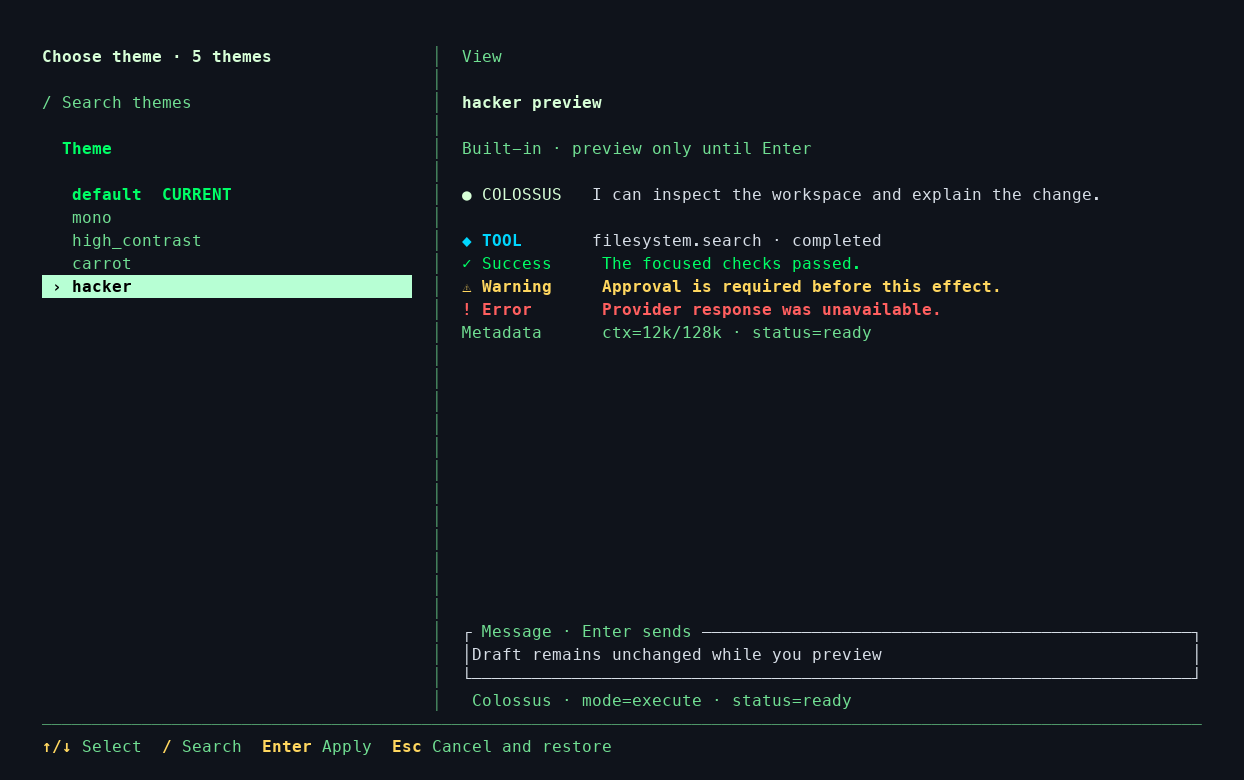
The screenshot previews hacker while default remains marked as the current
theme. Press Enter to save the selection.
Open the full-size screenshot.
Use Up/Down to move between themes and / to search by name. When search is active, the first Esc leaves search; press Esc again to close the browser. The selected theme remains in your terminal preferences after you leave the TUI.
Built-in themes
| Theme | Appearance |
|---|---|
default |
Balanced blue |
mono |
Color-free |
high_contrast |
Strong contrast |
carrot |
Warm orange |
hacker |
Green terminal |
You can also choose a theme directly from the composer:
List, preview, or reset
/theme list shows the active theme, all installed choices, and the folders searched
for custom themes. /theme preview NAME shows a sample without changing your
selection. /theme reset restores default. For the other terminal commands and
keys, see TUI commands and keys.
Create your own theme
-
Author a terminal theme
Start with a TOML file, choose colors and labels, then load it in the TUI.