Capabilities and plugins
The left navigation shows what the selected workspace or runtime makes available. Capabilities is the read-only starting point; Plugins is where you inspect and manage installed Agent Plugins.
See what this workspace advertises
Open Capabilities to see the effective tool access profile and execution boundary, available workspace tools, delegated agents, workflows, and Agent Plugins. The runtime-target section shows which local or External nodes are ready, and the current workload lists active work items you can open.
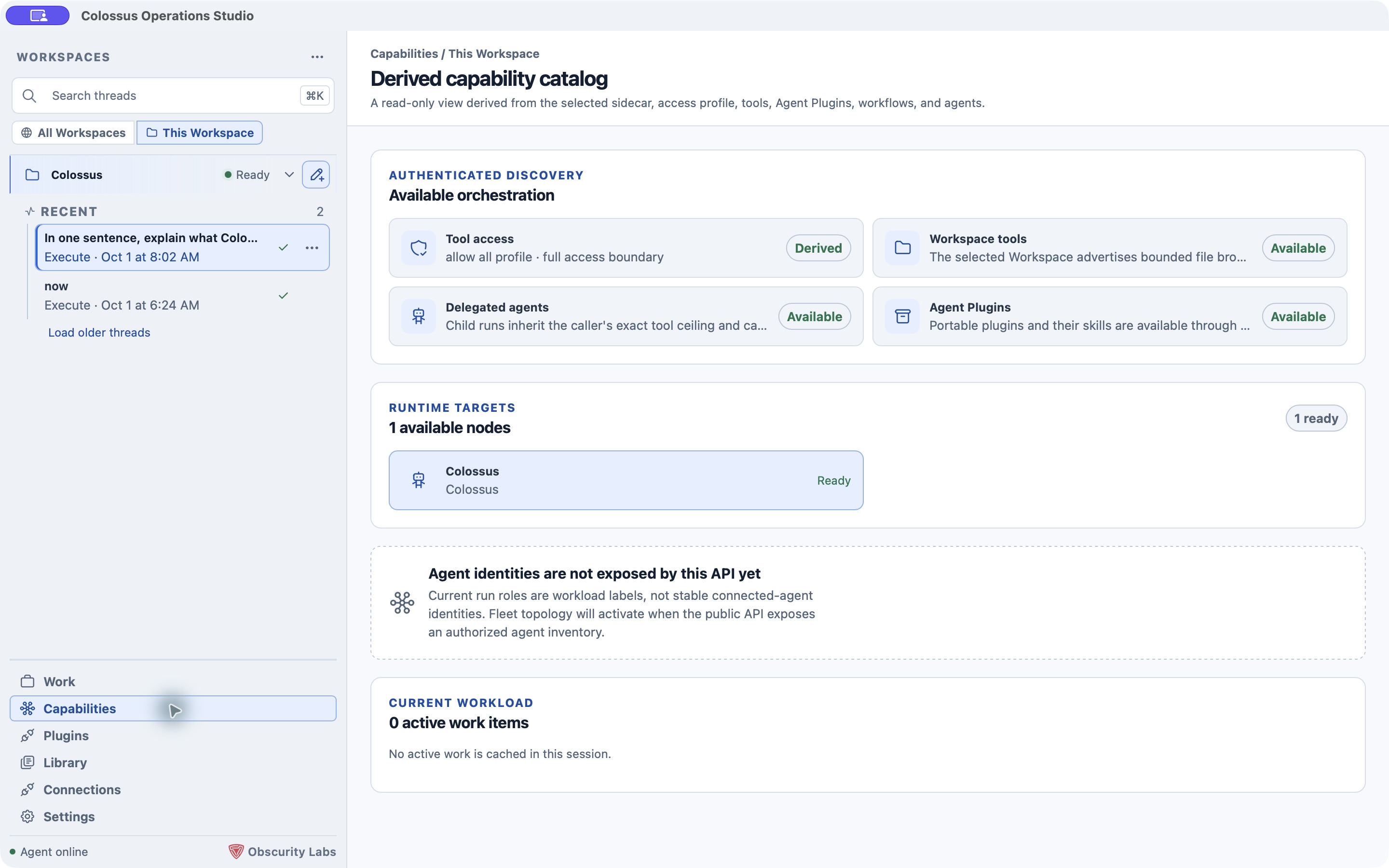
This view is derived from authenticated runtime discovery. A listed capability means the selected runtime advertises it; its use still depends on policy, configuration, and approvals. Current run roles are workload labels. Desktop does not yet expose a stable inventory of connected agent identities or a live fleet topology from the public API.
Use an installed skill
Open Plugins to search or filter installed plugins. Select a plugin to see its description, version, availability, skills, and MCP servers. A skill can show Preview instructions and Browse resources before you use it. Choose Use in this conversation to add its mention to the composer, or type @ and select the skill there. The skill influences that conversation; it does not silently grant extra tools or authority.
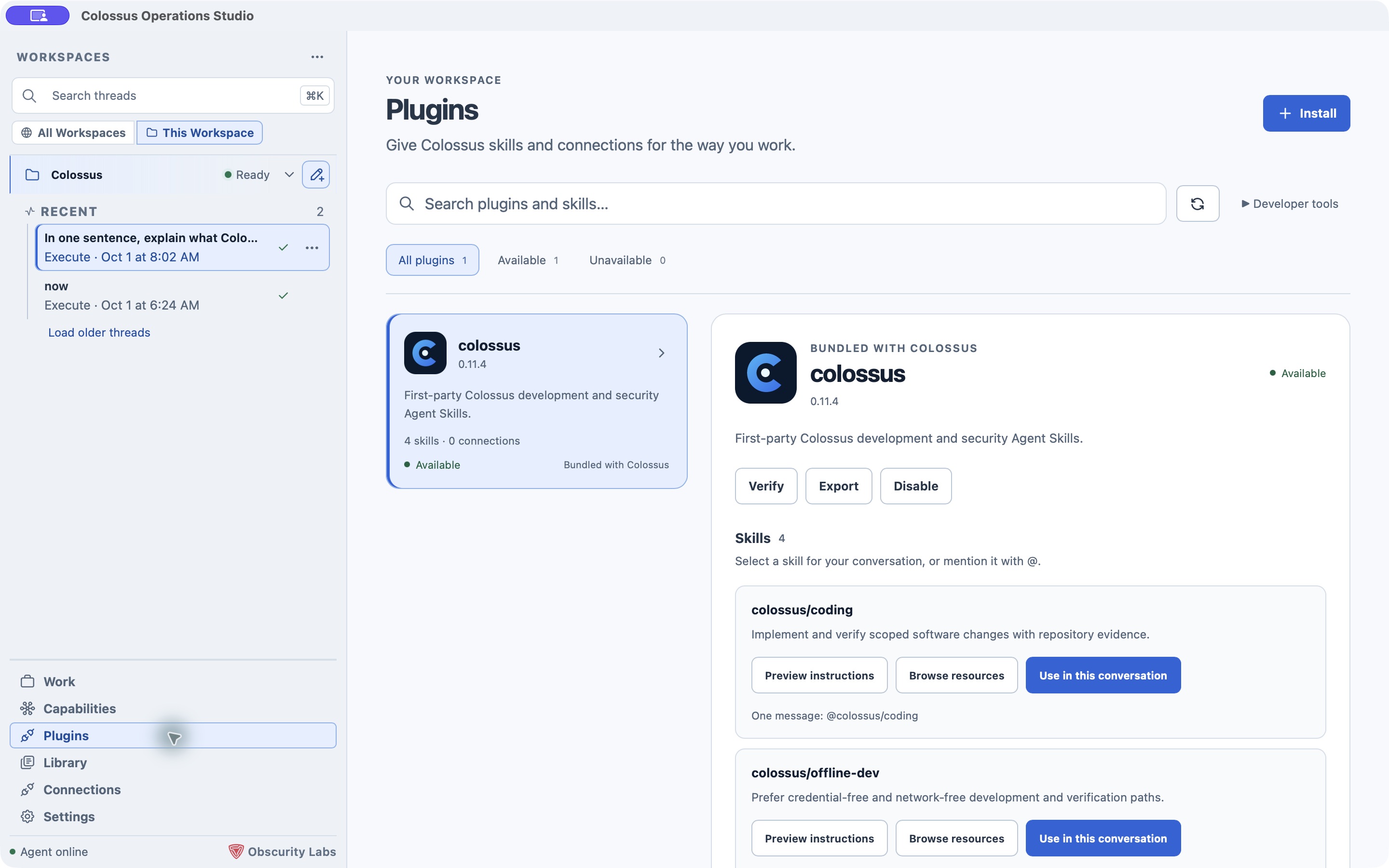
On Managed Local, the plugin page can install, verify, export, disable, and manage plugins when the runtime offers those operations. Developer tools exposes validate, package, pull, push, and garbage-collection actions. An External target may offer read-only plugin discovery instead. Review a plugin's origin and capabilities before installing or enabling it. Learn about Agent Plugins.
Plugin-provided MCP servers are listed in the plugin details. Enable each one explicitly in the workspace's plugin settings; storing a credential alone does not enable it. Standalone MCP server definitions live in Global and Workspace settings. MCP guide
Classic Outlook is a special case on Windows: its live COM connection needs the Connect Outlook session control in the signed plugin's details. The older published alpha.3 package has only a sandboxed stdio server and cannot attach to the running Outlook session. Plugin installation and Outlook requirements
Other navigation destinations
- Library lists released artifacts and their safe metadata for the current Desktop session. Open a thread's Resources or Artifacts pane for its specific outputs.
- Connections shows folder-backed workspaces and saved External daemons. Select a target there to route subsequent Work actions to it. External target setup
- Settings manages shared definitions and the selected workspace's accepted configuration. Settings guide
Next step
Start a Desktop task with a skill, or open Session views to inspect the result and its released evidence.